
Get Audit Data
The information on this page relates to the new upgraded interface of the IConduct platform. To view information about the Classic version of the user interface, follow this link.
The step allows you to retrieve the data from the audit trail. Audit trail is the system that logs information about all actions of the system’s users. The retrieved data replaces the current content in the schema being mapped into the selected columns.
To configure this manipulate step, follow the instructions below:
- In the specific Interface work area, press the downward button next to the task and press the ‘+’ (plus sign) button.
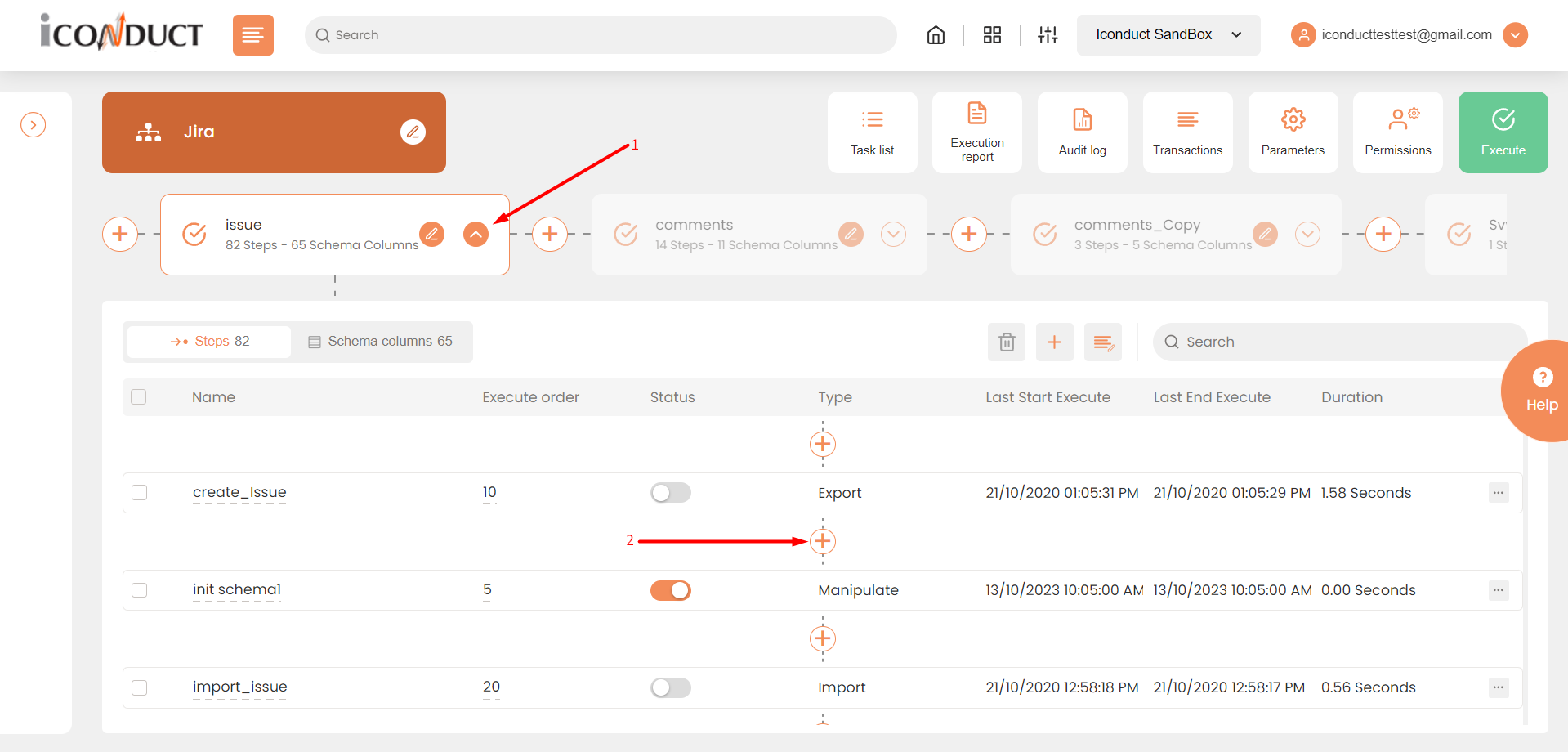
Creating a New Step
- Select Create manipulation step.
- Navigate to the Reports section and select Get audit trail.
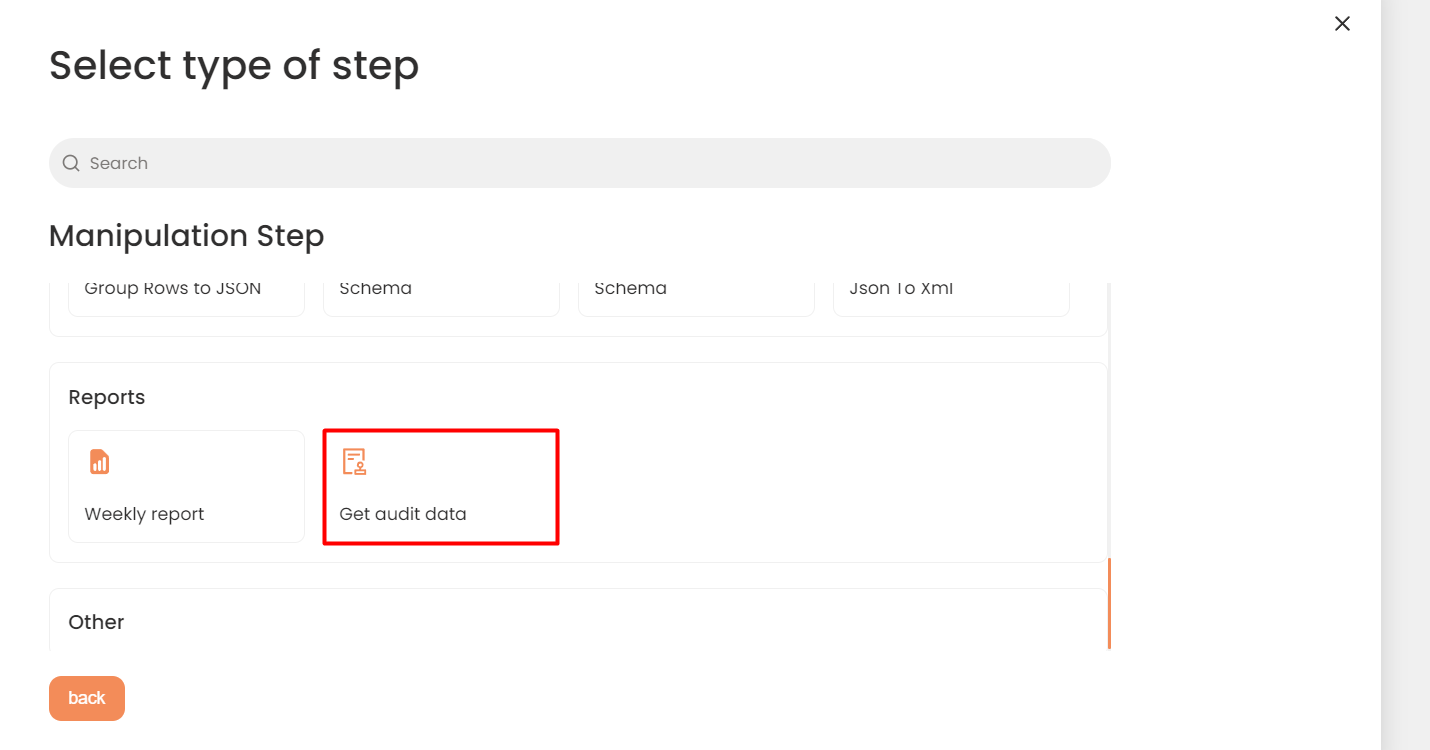
Reports Section
- In the work area, fill in the following fields:
| Fields | Description |
|---|---|
|
Name of step |
Provide a distinctive name for this step. |
|
Filter Expression |
Optional. Use this filed to filter data from the source database prior to inserting it into the Schema table. |
|
Sort Expression |
Optional. Use this field to sort data from the source database prior to inserting it into the Schema table. |
|
Order of Execution |
Enter the order in which this step should be executed. |
|
Audit notes |
Leave notes about the step if needed. This field may contain any information, such as the purpose of the step, further actions that must be taken etc. for you to work with the step in the future or to inform team members about your intent. |
|
Is Active |
Activate the switch to engage the scheduler for this step. |
|
Stop interface execution if query failed |
Optional. If enabled, the system will stop any data manipulation if the query returns an error. |
|
Save Schema (enabled per interface) |
If selected, the schema is created for this step. |
|
Date From |
Select the date, from which the data will be retrieved. |
|
Date To |
Select the date, to which the data will be retrieved. |
|
Parameter |
If needed, replace the Date From and Date To with a parameter. |
- Press theCreate step button.
Please, note that configured maximum number of rows to import into the schema is 100,000!